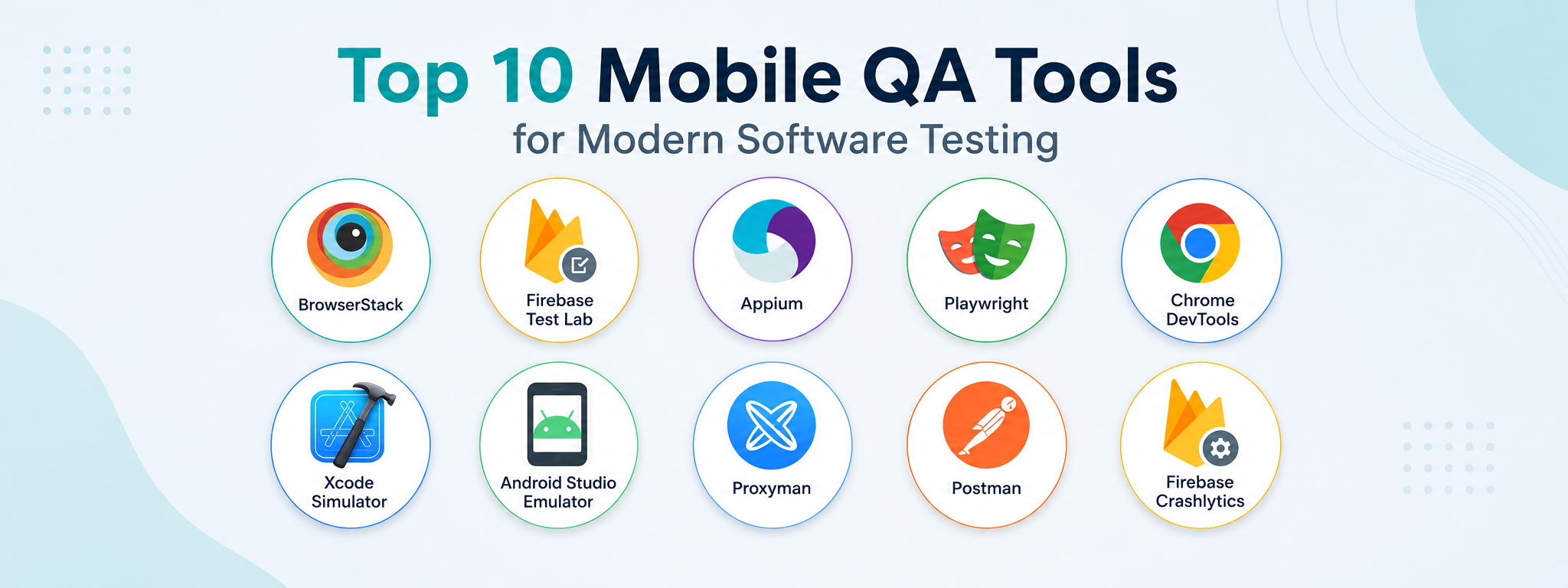

Top 10 Mobile QA Tools That Help Catch Bugs Before Users Do
A practical guide to mobile QA tools, what each one is best suited for, how to use them effectively, and why modern software teams need more than desktop testing.
Mobile QA is not just desktop testing on a smaller screen.
That is where many teams get it wrong.
A product can look fine on a laptop and still feel broken on a phone. Buttons can be too small to tap. Modals can hide behind the keyboard. Payment redirects can fail. Scroll areas can trap the user. Mobile browsers can behave differently. A slow connection can expose loading issues that nobody saw on desktop. A native app can crash on one device model and work perfectly on another.
This is why mobile testing needs the right tools.
Not because tools magically make QA better, but because mobile products have more variables than desktop products. Device size, operating system, browser engine, touch behaviour, network quality, app permissions, camera, location, keyboard behaviour, orientation, memory, battery and real device performance all affect the user experience.
The goal is not to use every tool on this list.
The goal is to understand which tool helps answer which testing question.
A good mobile QA setup is not about having the most tools. It is about using the right tool at the right moment.
1. BrowserStack
BrowserStack is one of the most useful tools for mobile QA because it gives teams access to real iOS and Android devices in the cloud.
This is especially useful when a team cannot keep a large physical device lab, but still needs to test across different phones, tablets, operating systems and browsers.
BrowserStack is best suited for real-device coverage, mobile browser differences, quick reproduction of device-specific bugs, mobile web testing and manual QA when the team needs access to devices they do not physically own.
It is especially useful when a bug report says something like:
The checkout button is hidden on iPhone Safari.
The menu does not open on Samsung Galaxy.
The page works on Chrome desktop but breaks on mobile Safari.
Do not just open one random iPhone and call it mobile testing. A better approach is to build a small device matrix based on your users and product risk.
For many teams, that means checking iPhone Safari, Android Chrome, one small Android screen, one large iPhone, one tablet if the product supports tablets, one older OS version and one newer OS version.
BrowserStack is also useful when developers say they cannot reproduce a mobile bug. Instead of saying “it happens on my phone,” QA can provide the exact device, OS, browser, screen recording and steps.
That turns vague mobile feedback into actionable evidence.
2. Firebase Test Lab
Firebase Test Lab is useful when teams want to run tests across hosted Android and iOS devices without manually opening every device one by one.
It is best suited for broader automated device coverage, regression checks, Android instrumentation tests, iOS XCTest runs and checking whether an app behaves differently across device models.
It is especially useful when a team has a native mobile app and wants to know whether the app installs correctly, whether a smoke suite passes on common devices, whether login still works after a release, or whether a build crashes on certain Android versions.
Use Firebase Test Lab for repeatable checks, not for deep exploratory testing.
A good starting point is a small smoke suite:
install app
open app
login
load home screen
perform one core action
logout
Then expand it around release risk, such as checkout, subscription activation, file upload, camera permission, push notification permission, offline recovery or deep link opening.
The value is simple: the team can discover basic mobile failures before manual QA starts.
3. Appium
Appium is one of the best-known open-source tools for mobile automation.
It is best suited for native mobile app automation, hybrid app automation, repeated regression flows and cross-platform mobile checks when a team wants automation that interacts with the app like a user.
It can be useful for flows such as login, onboarding, search, profile updates, checkout, subscription purchase, settings changes and logout.
Do not start by automating everything.
Start with the few flows where repeated testing is painful and valuable. For many teams, that means authentication, onboarding, payment or checkout, one core business flow and one regression flow around past bugs.
Appium is powerful, but mobile automation can become expensive to maintain if selectors are unstable, the app changes often or the test tries to cover too much.
The best use is usually a focused regression suite that protects the most important flows.
QA should also be careful with false confidence. Passing Appium tests do not prove the mobile experience is good. They prove that specific automated paths still work under specific conditions.
4. Playwright Mobile Emulation
Playwright is very useful for mobile web testing.
It supports browser automation and device emulation, with predefined device profiles for selected desktop, tablet and mobile devices.
Playwright mobile emulation is best suited for mobile web applications, responsive layout checks, regression testing across viewports, form behaviour, navigation, language, timezone, geolocation scenarios and repeated browser-based flows.
It is not a full replacement for real-device testing, but it is very useful early and often.
A practical setup could run the same core flow across desktop Chrome, a mobile Chrome profile, a mobile Safari-like viewport, a tablet viewport and a small mobile viewport.
Good checks include whether the main CTA is visible, whether the menu opens and closes, whether forms can be submitted, whether error messages are visible, whether sticky footers cover content, whether modals can be closed and whether the page overflows horizontally.
Playwright is also helpful because it can generate traces, screenshots and videos. That makes failures easier to inspect and easier to explain.
5. Chrome DevTools Device Mode
Chrome DevTools Device Mode is one of the fastest tools for mobile web QA.
It is best suited for fast manual checks during development or QA, especially for mobile web layout, responsive design, CSS issues, scroll behaviour, loading states and network throttling.
It is not the same as testing on a real phone, but it is excellent for early investigation.
Use it while testing the page manually. Resize from narrow to wide, rotate to landscape, test small-height screens, throttle the network, inspect failed requests, check whether buttons are hidden behind sticky elements and look for horizontal scrolling.
Device Mode works best when combined with the Network tab and Console.
For example, if a mobile page shows a generic error, QA can check whether the API failed, whether a request was blocked or whether a frontend console error appeared.
A common mobile bug is not only that validation fails. It is that validation fails in a place the user cannot see.
Example:
Invalid form submitted on mobile.
Error message appears below the viewport.
Page does not scroll to the error.
User sees no visible feedback.
That is a mobile recovery issue, not just a form validation issue.
6. Xcode Simulator
Xcode Simulator is important for iOS testing.
It is best suited for iOS app testing, iOS layout checks, Safari-related investigation, early debugging, different iPhone and iPad screen sizes and flows that do not require physical hardware behaviour.
It is especially useful for teams building native iOS apps or testing mobile web behaviour from a Mac-based workflow.
Use the simulator to quickly check iOS-specific behaviour before moving to real devices.
Good test areas include small iPhone layout, large iPhone layout, iPad layout, orientation changes, keyboard behaviour, safe area handling, modal display, deep links and basic permission prompts.
The simulator is fast and accessible, but it has limits. It does not perfectly represent real device performance, camera behaviour, battery state, sensors or every hardware-level condition.
A useful rule is simple: simulator for fast coverage, real iPhone for final confidence.
7. Android Studio Emulator
Android Studio Emulator is the standard Android virtual-device tool.
It is best suited for Android app testing, device profile coverage, Android version checks, permission testing, install and uninstall flows, debugging and fast reproduction of Android-specific issues.
It is also useful when QA needs a clean device state.
Create a few Android Virtual Devices instead of relying on one default emulator. A practical setup could include a small Android phone, a modern Pixel-style device, an older Android version if supported, a large screen or tablet if relevant and a clean install state.
Use the emulator to test fresh installs, upgrade installs, permission prompts, login persistence, push notification permission, orientation, deep links, offline behaviour and storage clearing.
The emulator is especially useful for reproducing bugs that depend on app data. You can wipe data, reinstall builds and repeat a scenario more easily than on a personal phone.
For example, if a login issue only appears after app data is cleared and the app is opened from a deep link, Android Emulator makes it easier to repeat the exact scenario until the behaviour is clear.
8. Proxyman or Charles Proxy
Proxy tools such as Proxyman and Charles help QA inspect mobile network traffic.
They are best suited for API-heavy mobile apps, request and response inspection, debugging authentication issues, checking headers, validating payloads, testing redirects, investigating environment issues and proving whether the mobile app sent the correct data.
They are especially useful when the app does not expose enough information through the UI.
Use a proxy when you need to answer questions like: did the app send the request, which endpoint was called, was the request body correct, did the app send the right token, what did the backend return, did the response contain an error the UI ignored, did the app call staging or production, and did the redirect chain work?
This is very useful in mobile QA because the UI often hides what happened behind the screen.
Example:
Mobile app shows generic upload error.
Backend returns 413 Payload Too Large.
UI does not explain the file-size limit.
That is stronger than simply saying “image upload does not work.”
9. Postman
Postman is not a mobile testing tool in the narrow sense, but it is very useful for mobile QA when the app depends heavily on APIs.
It is best suited for validating backend behaviour separately from the mobile UI. This matters when a mobile issue may be caused by the frontend, backend, API contract, authentication, permissions, validation or state logic.
Use Postman to separate UI problems from backend problems.
For example, if the mobile app says profile update failed but the same payload succeeds in Postman, the likely issue may be mobile-side handling. If Postman shows that the backend rejects the payload, the issue may be backend validation or API contract behaviour.
Postman is also useful for negative testing: missing fields, invalid values, boundary values, expired tokens, wrong user roles, duplicate requests and unsupported state transitions.
This connects strongly to mobile QA because mobile apps often make backend state harder to see. Postman helps QA check whether the server behaviour is correct outside the mobile UI.
A simple but important example: the mobile app hides a restricted action, but Postman shows the same user can call the API directly and perform that action. That is not a mobile UI bug. That is a backend authorization bug.
10. Firebase Crashlytics or Sentry
Crash reporting tools are not a replacement for QA, but they are very useful after release and during beta testing.
Firebase Crashlytics and Sentry are best suited for production and beta stability monitoring, crash triage, release risk review, device-specific problems, regression detection and prioritizing real-world issues.
They are useful when QA and development need to know which crashes affect the most users, which app version introduced the issue, which device or OS is affected, whether a fix regressed and whether the latest release is stable enough.
Use crash data as feedback into QA.
A good workflow is:
review crashes after release
group by app version
check affected devices
reproduce on matching device or emulator
create a bug report with crash context
add regression coverage
monitor the next release
Crash reporting should not become a passive dashboard that nobody checks. It should influence testing priorities.
If a crash appears mostly on older Android devices, then those devices deserve more attention in the next test cycle. If a release has a spike in crashes around checkout, then checkout needs deeper regression testing before the next release.
Without crash reporting, the team may only hear “the app crashes sometimes.” With crash reporting, the team can see where, when and for whom.
How these tools fit together
The mistake is thinking one tool solves mobile QA.
It does not.
Each tool answers a different question.
BrowserStack helps answer whether the product works on real devices the team does not physically own. Firebase Test Lab helps run automated checks across broader device coverage. Appium protects important native app flows with repeatable automation. Playwright catches mobile web regressions early. Chrome DevTools helps inspect mobile layout, network and frontend behaviour quickly.
Xcode Simulator and Android Studio Emulator help with platform-specific testing and clean device states. Proxyman and Charles show what the mobile app actually sends and receives. Postman checks backend behaviour outside the mobile UI. Crashlytics and Sentry show what breaks for real users after release.
That is the real value of a mobile QA toolkit.
It gives QA different lenses.
One tool shows layout. Another shows network traffic. Another shows backend behaviour. Another shows crashes. Another gives device coverage. Another supports automation.
Good mobile QA is not tool-heavy for the sake of it. It is evidence-heavy.
What teams should not do
A modern mobile QA setup should avoid a few common traps.
Do not rely only on desktop responsive mode. It is useful, but it is not the same as real-device testing.
Do not rely only on one personal phone. That gives a false sense of coverage.
Do not automate unstable flows too early. You may end up maintaining tests that do not protect much.
Do not ignore API testing because the app “looks fine.” Many mobile bugs are backend or contract issues hidden behind the UI.
Do not wait for production crash reports before testing risky flows. Crash tools are useful, but they should not be the first line of defence.
Do not treat screenshots as enough evidence. For mobile bugs, device, OS, browser, app version, network condition, logs and API behaviour often matter.
Where Laidoner Solutions helps
Laidoner Solutions helps software teams improve product quality through practical QA, API validation, regression checks, localization QA, automation support and clear defect reporting.
Mobile QA is a good example of why that combination matters.
A mobile issue may look like a layout bug, but the real cause may be an API response. A checkout issue may look like a payment failure, but the real problem may be a redirect or webhook state. A form may look fine until the keyboard appears. A button may work on desktop but become impossible to tap on a phone.
This is where practical QA helps teams see the product as users experience it.
The work can include manual mobile QA, mobile web testing, real-device checks, responsive layout review, mobile form testing, API validation for mobile flows, network and request investigation, bug reports with useful evidence, regression checks around risky mobile flows and tool selection for leaner QA workflows.
The point is not to make teams use every tool.
The point is to help them test the right risk with the right method.
Final thoughts
Modern software is not tested properly if mobile is only checked at the end.
Users do not experience your product through a perfect desktop browser on a perfect connection. They use phones with different screen sizes, different browsers, different operating systems, unstable networks, permission prompts, keyboards, notifications, redirects and real-world interruptions.
That is why mobile QA tools matter.
BrowserStack can give real-device coverage. Firebase Test Lab can scale automated checks. Appium can protect important native flows. Playwright and DevTools can catch mobile web regressions early. Xcode Simulator and Android Emulator can speed up platform testing. Proxyman, Charles and Postman can expose what is happening behind the UI. Crashlytics and Sentry can show what breaks after release.
But the real value is not the tool list.
The real value is knowing when and why to use each one.
Good mobile QA is not about clicking around on a phone and hoping something breaks.
It is about understanding where mobile products fail and using the right tools to catch those failures before users do.
Sources and further reading
- BrowserStack Documentation — App Live
- BrowserStack Documentation — Live
- Firebase Documentation — Test Lab
- Appium Documentation
- Playwright Documentation — Emulation
- Chrome DevTools Documentation — Device Mode
- Apple Developer Documentation — Running Apps on Simulated or Physical Devices
- Android Developers — Android Emulator
- Android Developers — Manage Virtual Devices
- Proxyman Documentation — Debug Android Devices
- Proxyman Documentation — SSL Proxying
- Charles Proxy Documentation — Using Charles From an iPhone
- Postman Documentation — Collections
- Postman Documentation — Monitors
- Firebase Documentation — Crashlytics
- Sentry Help Center — Crash-Free Rate
Need practical QA support?
Laidoner Solutions helps software teams with manual QA, API testing, localization review, release checks and clear defect reporting.
Contact Us